Draw, think, and present —
together.
Sketchbook pages or an infinite canvas — then compare revisions, present with a laser, and pin sticky notes with ink that moves with them.
Free · Real-time · Offline-first · End-to-end encrypted · 8 languages
Four jobs drawing alone can’t do
Sign off, review, present, and annotate — right where the work lives, without exporting to another tool.
Approval you can prove.
Seal what you agreed
Sign off a page or a whole book, then hand out a file that an auditor, insurer, or lawyer can check on their own machine — no account, no keys, no network.
Learn more →Approve with confidence.
Compare what changed
Side-by-side or slider — any two pages, live or historic, same book or another. Spot the diff before you sign off.
Learn more →Your book is the deck.
Present without marking
Go fullscreen and point with a laser instead of a pen — walk the room through student work or client mockups without drawing over them.
Learn more →Notes that move with their ink.
Pin ideas that stick
Typed sticky titles plus pen strokes that parent to the note — cluster feedback, then move the whole callout as one.
Learn more →Structured pages or an infinite canvas
Choose the surface when you create a document — File ▸ New sketchbook or File ▸ New canvas. Both share the same tools, collaboration, history, and encryption.
Sketchbook
Fixed pages you can flip through.
A multi-page book with real paper sizes — A4 and more, portrait or landscape. Perfect when the output matters: notes, worksheets, forms, and imported PDFs or GoodNotes notebooks.
Infinite canvas
One surface that never runs out of room.
An unbounded space that grows in every direction. Pan, zoom, and fit everything to screen — ideal for brainstorms, mind maps, and thinking big without page breaks.
Who gets the most out of these tools
Made for people who review, teach, facilitate, and work on site — not only for those who draw.
Teachers & trainers
Present lessons with a laser, collect feedback on stickies, and compare a student's draft against the answer key or an earlier attempt.
Design & product teams
Review mockups side by side, annotate with notes that carry ink, and walk stakeholders through a canvas without leaving marks.
Architects & engineers
Diff plan revisions, mark-up imported PDFs, and keep every signed change in a verifiable history.
Workshop facilitators
Run brainstorms on an infinite canvas, cluster ideas on sticky notes, then present the mural live to the room.
Field & on-site teams
Work from page templates offline — forms, sketches, checklists — then sync with the office when you reconnect.
From brainstorm to boardroom
The same book adapts to how your team works — creative, educational, or all-business.
Team brainstorming
Infinite canvas for solo thinking or a live team mural. Sticky notes with attached ink turn messy thoughts into clusters you can move.
Design & document review
Put two pages side by side or under a slider — live draft or a past revision. Spot what changed before you approve.
Live presentations
Present a page deck or pan a canvas. Point with a laser instead of scribbling, link strokes to references, preview embedded files.
Classroom & training
Shared mural or a personal page per learner. Stickies collect feedback; laser present without scribbling over student work.
PDF mark-up
Import a plan, contract, or proposal and annotate with the team. Stickies pin comments to a region; history keeps every signed change.
Offline field work
Fill templates and sketch on site with no signal. Everything syncs when you reconnect.
Sign-off & audit trail
Seal an agreed page, have the other side counter-sign, and export a self-contained evidence file a third party can verify without your keys.
Two ways to collaborate
Shared canvas
Everyone paints on the same page. Ideal for co-creation, workshops, and a whole class working on one mural. See every change live as it happens.
Shared book, own pages
Each participant gets their own page inside one shared book — great for student worksheets and team status pages. And every change is signed by its author.
Your sketchbook is the deck
Switch to a distraction-free Presentation mode straight from the Window menu — no export, no second app.
- Flip through pages like a deck, or pan and pinch-to-zoom around an infinite canvas.
- Point with a laser pointer — a glowing highlight with a short trail, so the work you present stays untouched.
- Attach hyperlinks to strokes and images for external references.
- Embed and preview files inline — video, audio, images, and Word documents.
- Live collaborator edits keep appearing while you present.
Compare any two pages
Assign pages to slots ① and ② — same book or different open books, today’s draft or a historical revision — then open Compare. Slot ① is always the read-only reference; slot ② stays editable when it is the live current version.
Practical for design reviews, architecture mark-ups, teaching (draft vs. answer key), and any workflow where “what changed?” matters more than scrolling history alone.
Every page remembers everything
Each page keeps its complete edit history from the very first stroke. Storage is append-only: changes are added, never overwritten — so nothing anyone draws, erases, or deletes is ever truly lost.
- Nothing is ever overwritten. Every change is appended with date and author, signed and encrypted.
- Open the book — or a single page — exactly as it was at any point in time, back to the day it was created.
- Concurrent edits merge cleanly. When an Android Tablet and an iPhone change the same page at once, AutoMerge produces one consistent image — and the change graph shows what each device saw locally when it applied its change.
- Copy elements from the past into your current page — recover an erased sketch or a deleted idea.
- Compare a historical page against today’s draft in side-by-side or slider mode.
And because the whole timeline is explorable, it works for play too: build a scavenger-hunt quiz book where clues hide in the past — “find the next hint yesterday at 12:00 on page 40!”
Click for the change graph and a scrub through this page’s history.
Seal a page. Prove it later.
A history is only worth as much as the people who have to believe it. Sealing turns an agreed page — or an entire book — into a signed, independently timestamped record, and exports it as one file that a third party can check on their own machine. No account. No keys. No network. No reason to trust us.
- Seal a page or the whole book. The seal pins the exact state you approved, down to the last stroke — not “the latest version”, which is a moving target.
- As many signers as the decision needs. Everyone can co-sign the same approval, or counter-sign a previous one to record that they saw it and agreed after the fact.
- Timestamped by an outside party. An RFC 3161 authority signs the seal, so the date does not rest on your clock or ours — and it can be an eIDAS-qualified authority where the process demands it.
- Marked on the timeline. Seals appear as milestones in the revision slider, re-verified every time you open them — a broken one says so.
- Exported as evidence. One ZIP with the drawing, the signatures, the timestamps, and a self-contained verifier that runs offline in a browser.
What the recipient sees
- Unchanged since it was sealed. Every stroke matches what was signed.
- Two signatures, both valid. Made with the keys the record names.
- Existed no later than 3 March, 14:22 UTC. Confirmed by an independent timestamp authority.
- Who those keys belong to. Not something a file can settle — the parties agree that, and the bundle carries a directory excerpt to help.
The verifier reports what it could not check as plainly as what it could. A tool that only ever says “valid” is not evidence.
Local-first, template-ready
Perfect for the field: no signal, no problem. Bring PDFs and GoodNotes notebooks in locally, then keep working offline.
Local-first
Fully usable with no connection. Your changes queue and sync automatically when you reconnect.
Template system
Start “New from template” for repeatable documents — forms, timesheets, lesson plans, storyboards.
PDF & GoodNotes import
Bring existing documents in to annotate or use as a base for your sketch — including GoodNotes notebooks, whose handwriting arrives as strokes you can still edit.
Meet your files where they already live
Drag & drop
Drop files and images straight onto the page or canvas from your desktop.
Export & tiled print
Export or print sketchbooks at a true page size — or tile an infinite canvas across A4, A3, or Letter sheets with a 1 cm glue overlap and assembly arrows.
Rich previews
Attached video, audio, images, and documents preview inline — no download needed.
Built on MindooDB
TeamSketchbook runs on an end-to-end encrypted, local-first sync database. Clients keep the keys; servers only store and sync ciphertext.
End-to-end encrypted
Your books are encrypted on your device. No one — not even us — can read them without your keys.
Signed per author
Every change is cryptographically signed, so the revision history is tamper-evident — and can be handed to an outsider as evidence.
You choose where it lives
Use our hosting, run your own MindooDB server, or stay fully local-first and offline.
A toolbox that gets out of your way
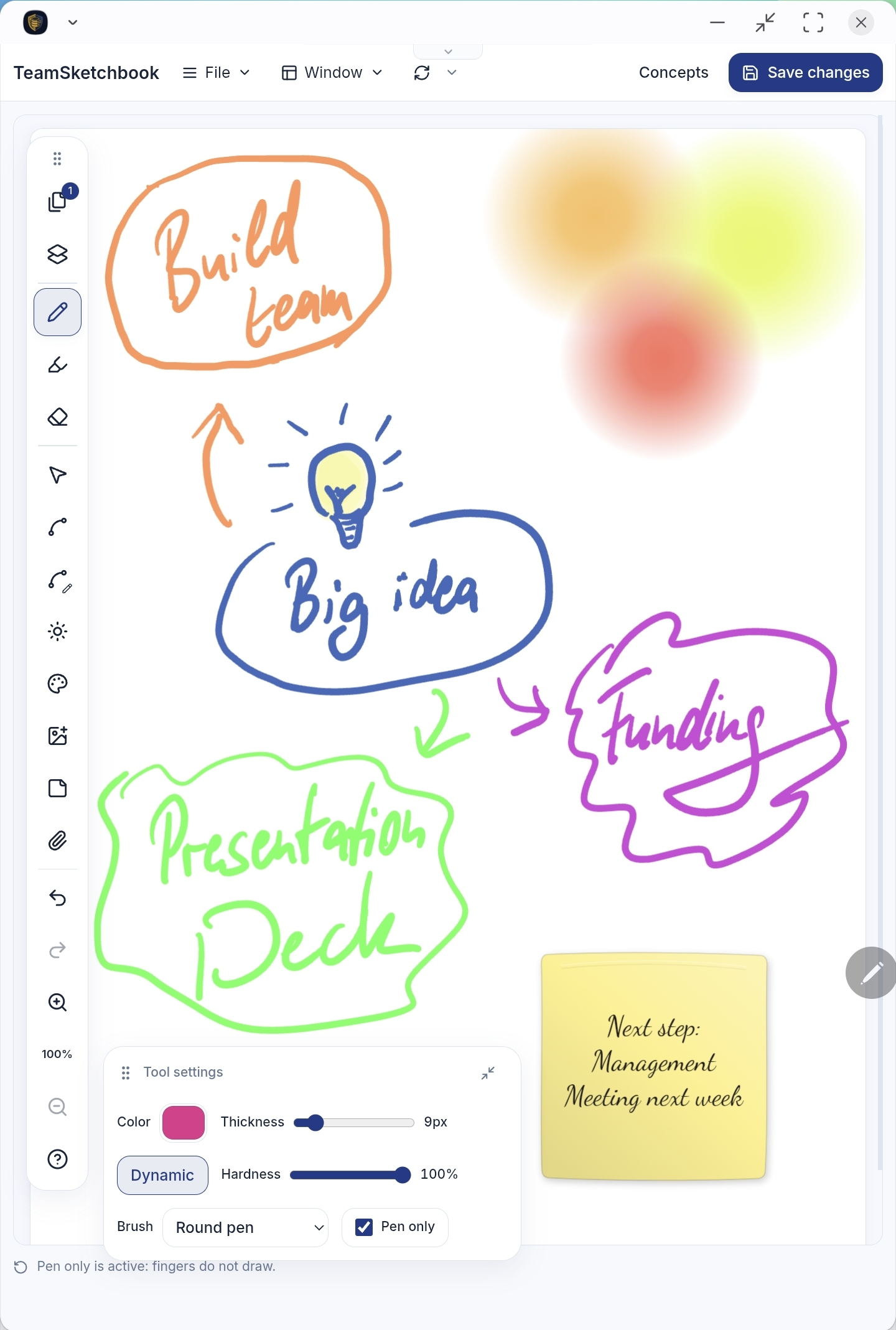
Pressure-sensitive pens, editable splines, layers, sticky notes, gradient lights — every tool lives in a tidy rail with a floating, draggable settings panel.
Pen & Marker
Dynamic pressure, adjustable hardness, brush styles, and translucent highlighters. Pen-only mode ignores palm and finger touches.
Spline & Edit spline
Draw smooth, editable curves — then drag, add, or remove knots to reshape them precisely.
Select
Move, resize, restyle, flip, smooth, arrange z-order, group with a name, and change the transparency of strokes and images.
Sticky notes
Drop a pastel sticky, type a title with alignment and font style, then switch to the pen — ink sticks to the note and moves with it.
Layers
Add, rename, reorder, show, and hide named drawing layers. Draw and select on the active layer so corrections stay where you intend.
Light
Place adjustable gradient lights behind the paper for TeamSketchbook's signature glow.
Page properties
Paper types — blank, lined, squared, dotted, Cornell, columns, music staves, coordinate grid — plus paper color and portrait or landscape.
Insert image
Add images from your photo library, camera, or files, then paint over them to move, resize, or rotate.
Attach file
Attach any file — drag it onto the canvas or use the paperclip. Preview, download, or share attachments.
Navigate
Buttery zoom, a page-navigator minimap, undo / redo, and contextual help that explains every control.
Little touches that make it a joy
From glowing lights to a full set of paper types — pick the surface that fits the moment.
See it in action
Attach files to photos, leave sticky + ink feedback, or capture everyday pages — all from the same toolbox.
One canvas, every device
Web & PWA
Runs in any modern browser. Install it like an app.
Tablet, pen-first
Built for stylus input with pen-only mode.
Desktop
Windows, macOS, and Linux.
Offline everywhere
Local-first — no connection required.
Available in 8 languages: English · Deutsch · Français · Español · Italiano · Nederlands · Norsk · Polski
Get started in four steps
- 1
Open Haven
Go to haven.mindoodb.com in your browser.
- 2
Create your user ID
Enter a name and organization to create your personal identity.
- 3
Create your first tenant
Choose a tenant ID — your private space for books and collaborators.
- 4
Install TeamSketchbook
Open “Applications” and install TeamSketchbook from the Haven App Store.
Good to know
What's the difference between a sketchbook and a canvas?
A sketchbook is a book of fixed pages with real paper sizes (A4 and more) — ideal for notes, forms, and PDFs you want to print or export at 1:1. An infinite canvas is one unbounded surface you can pan, zoom, and fit — ideal for brainstorms, mind maps, and big-picture work. Pick the mode when you create a document: File ▸ New sketchbook or File ▸ New canvas.
How do I print an infinite canvas?
The print dialog tiles the canvas across standard sheets (A4, A3, or US Letter) with a 1 cm glue overlap on the right and bottom of each sheet. A live preview shows the layout and sheet count, and small arrows mark which neighbouring sheet to glue on top — so you can assemble a wall-sized result.
Does it really work offline?
Yes. TeamSketchbook is local-first — you can draw, annotate, and fill templates with no connection. Changes queue locally and sync automatically once you're back online.
Is it free?
The app itself is free to use — run your own MindooDB server or work entirely local-first and offline at no cost. If you'd rather not host anything, MindooDB Cloud gives you a private, end-to-end encrypted cloud for TeamSketchbook and every other Haven app at €7.99 per user per month, €79.99 per year, or team packages from €349.99 for 5 users per year — 10, 15, 20 users and up on request (incl. VAT), with 200 GB of storage per user included (more available on request). See pricing for details.
Can I go back to an earlier version of a page?
Always. Every page keeps its complete edit history from the very first stroke — storage is append-only, so changes are added rather than overwritten. Open any past state of a page or the whole book, copy elements from it into your current draft, or compare it against today's version. Even erased or deleted content can be recovered.
Who can see my sketchbooks?
Your data is end-to-end encrypted by MindooDB — clients keep the keys, and servers only store and sync ciphertext. You control who is invited to a book.
Can I present without extra software?
Yes. Switch to Presentation mode from the Window menu. Use the laser pointer to highlight without marking the page, add hyperlinks to strokes and images, and preview embedded files (video, audio, images, Word documents) live.
How does page compare work?
Assign any two pages to slots ① and ② — from the same book or different open books, current draft or a historical revision — then open Compare. Choose side-by-side or a slider overlay. Slot ① is always the read-only reference; slot ② stays editable when both sides are the live current version.
What can sticky notes do?
Place a sticky, type a title with alignment, pick a fill color, then switch to the pen — new ink attaches to that note and moves with it. Changing the selection color updates the sticky text and attached strokes together.
Can I import PDFs and export my work?
Yes. File ▸ Import takes a PDF or a GoodNotes notebook, lets you pick the pages you want, and adds them to a book — to annotate or to build on. Finished sketchbooks export or print at 1:1.
What comes across when I import a GoodNotes notebook?
Your handwriting, as editable strokes: pen, ballpoint, pencil, and highlighter keep their colour and pressure, so imported notes can be recoloured, erased, moved, and selected exactly like ink drawn in TeamSketchbook. Each page keeps the paper it was written on as its background. Typed text, images, and shapes are not imported. Export a .goodnotes file from GoodNotes, choose File ▸ Import, and pick the pages from the previews.
Does real-time collaboration cost extra?
No. Collaboration is built in. Invite people to a shared canvas, or give each person their own page in a shared book.
What does it mean to seal a page?
Sealing records that a specific person approved a specific state of a page or book. It captures the exact content — not "the current version" — signs it with your key, and has an independent authority timestamp it. The seal then appears as a milestone on the revision timeline, and you can export it as a file for someone outside your organization to check. See how verification works.
Can more than two people sign?
Yes, there is no limit. Several people can co-sign the same approval, which records that they all agreed to one identical statement. Someone can also counter-sign an existing seal later, which records that they reviewed that earlier approval and endorsed it. Both are exported together, so the full chain of who agreed to what is visible in one file.
How does this relate to eIDAS and qualified signatures?
A seal always gives you cryptographic evidence: proof that the content has not changed since it was signed, that the signatures were made with specific keys, and that the seal existed no later than the timestamped moment. As included, seals are timestamped by an independent public authority — genuine third-party evidence, but not qualified in the eIDAS sense. The timestamping authority is a configuration setting, so it can point at an eIDAS-qualified provider instead, which gives the timestamp a legal presumption of accuracy; that is priced as an add-on, since the qualified service is itself a paid subscription. A full qualified electronic signature is a further step, requiring a qualified certificate issued to each named signer. See qualified trust services.
What does the recipient need in order to verify a seal?
A browser. The exported ZIP contains a self-contained verifier that runs entirely on their machine with no network access, no account, and no keys from you. It reports each claim separately — whether the content is unaltered, whether every signature is valid, and what the timestamp proves — and it says plainly which claims it could not check rather than returning a single green tick.
Does the export reveal our whole workspace?
No, and you decide how much it reveals. The lightest option is a flat picture of the approved page with the signatures over it. The fullest option includes the signed change history, which lets the recipient rebuild the drawing themselves and confirm it matches — but that also reveals strokes you erased along the way, so the app warns you before you choose it. Nothing outside the sealed pages is ever included, and no decryption keys leave your device.
Start your first sketchbook — free.
Open Haven, create your space, and install TeamSketchbook from the App Store.